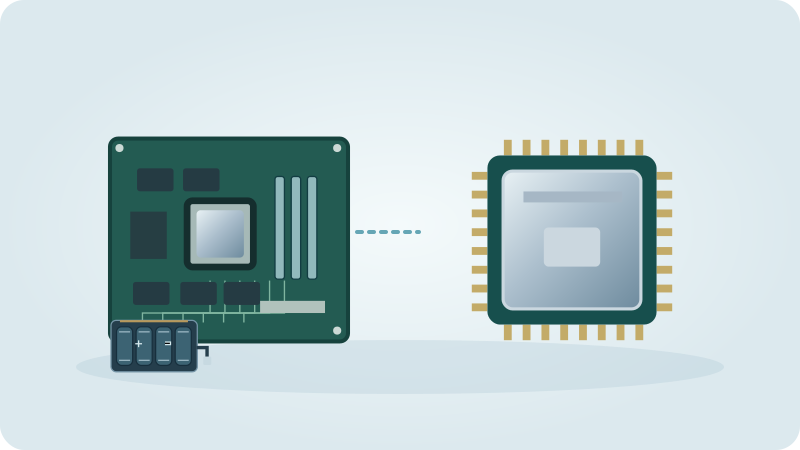
Adding memory is one of the few upgrades that an ordinary PC or laptop owner can sometimes do alone, but it only works when the new modules match the computer. The wrong generation does not fit in the slot, a soldered laptop has nothing to add to, and more RAM does not repair a computer that is slow for another reason. A few minutes of checking before you buy saves the most common mistakes.
This guide is about choosing and installing. It explains how to find out what your machine takes, the difference between the DDR generations in plain words, why two modules are often better than one, where laptops set hard limits and what the work itself involves. If you are still deciding between more memory and a faster drive, read the comparison of SSD and RAM upgrades first; for games, the separate guide on how much RAM gaming needs covers the amounts.
Can my PC or laptop take more RAM?
Start with the exact model, not the brand. On a laptop the model name is usually on a label underneath or in Settings under System, About. On a desktop built from parts, look at the motherboard name in System Information. With that you can open the manufacturer's support page or the manual and look for the memory section: it states the generation, the number of slots, the maximum capacity and sometimes the fastest supported speed.
You can also see a lot from inside Windows. In Task Manager, open Performance and then Memory. It shows the total amount, the speed, how many slots are used and the form factor, which is DIMM on desktops and SODIMM on most laptops. If the line for slots used says two of two, there is no empty slot and an upgrade means replacing the existing modules with larger ones. If the form factor field says row of chips, the memory is probably soldered. Treat these readings as hints and confirm them in the manual, because some laptops combine soldered memory with a single free slot.
DDR3, DDR4 and DDR5: what the generations mean
DDR is the family name of the memory type, and the number after it is the generation. The generations are not interchangeable. They use different voltages and the notch in the connector sits in a different place, so a module of the wrong generation is physically prevented from fitting. Forcing it breaks the slot or the module. Your computer accepts exactly one generation, and the motherboard or laptop manual names it.
Size matters too. Desktop modules are longer (DIMM) and laptop modules are shorter (SODIMM), so a laptop module does not go into an ordinary desktop board and vice versa. Newer is not automatically better for you: the platform decides what is supported, so a computer built for DDR4 cannot use DDR5 memory however fast it is. Faster modules than the platform supports usually run at a lower, supported speed, which wastes money.
| Generation | Where you meet it | What to keep in mind |
|---|---|---|
| DDR3 | Older desktops and laptops | Often limited in capacity; compare the cost of modules with the age of the machine |
| DDR4 | Many computers still in everyday use | Widely supported; check the maximum capacity in the manual |
| DDR5 | Newer platforms | Not compatible with DDR4 slots; confirm what the board accepts |
| LPDDR | Thin laptops with memory on the board | Check the exact design: integrated memory is not a replaceable module |
How much RAM do you need?
The right amount depends on what you run at the same time, not on a number you saw in an advert. Open Task Manager during a normal working day with your usual browser tabs and programs, and look at how much memory is in use. If usage regularly sits close to the total and the computer starts to stutter, more memory helps. If it uses half of what is installed, extra RAM will change very little.
As a rough orientation, 8 GB is workable for basic office use, mail and browsing with a few tabs, 16 GB is a comfortable level for most households and home offices, and larger amounts make sense for video editing, virtual machines, large photo libraries or demanding games. These are practical guidelines rather than hard rules, and a 32-bit version of Windows cannot use more than about 4 GB anyway. For games, the guide on how much RAM gaming needs in 2026 goes through the amounts in detail. If the computer is slow while memory use is low, the cause is probably the drive or something else, as the comparison of SSD and RAM upgrades explains.
Dual-channel: why two matching modules are better than one
Most desktop boards and many laptops can read from two memory modules at once. This is called dual-channel. Two modules of the same size and speed in the correct pair of slots give more data throughput than a single module of the combined size, which can be noticeable in games, integrated graphics and demanding applications. A computer with a single module still works, only with less bandwidth available.
A supported matched kit reduces uncertainty, but the motherboard’s slot order and memory support list remain decisive. Mixed modules may run at a mutually supported speed or fail to train reliably; the slowest label alone does not predict the result. XMP and EXPO are optional performance profiles and can involve overclocking. First test at supported default settings; only enable a profile after checking processor, board and module support and the relevant warranty conditions.
Soldered memory or slots: the limits of laptops
Many modern thin laptops have the memory soldered to the mainboard. It cannot be replaced, and the only way to have more is to buy the version with more at the time of purchase. Computers from some manufacturers combine both: part of the memory is soldered and one slot takes an additional module. Others have two normal slots, which is the easiest case. Apple computers with their own chips use memory that is part of the processor package and cannot be upgraded.
This changes how you buy a laptop. If you expect to need more later, look for a model with accessible slots and read the service manual before purchase. If the memory is soldered, choose the amount you will need for the next years, or consider whether another upgrade, such as a faster drive, gives more benefit. Our guide on whether upgrading an old laptop is worth it helps with that decision.
| Laptop type | Memory | What it means for an upgrade |
|---|---|---|
| Two SODIMM slots | Replaceable modules | Easiest case; two matched modules give dual-channel |
| One slot plus soldered memory | Partly replaceable | Check the manual for the supported module size and pairing |
| Fully soldered | Fixed at purchase | No upgrade possible; plan the amount when buying |
| Access under a cover | Depends on the model | Some designs need the whole back removed; see the service manual |
Installing the memory step by step
The physical work is simple if the right modules are in your hand, but it needs care. Work at a clean table, and keep screws in a small dish. If you are unsure at any point, stop; a bent contact or a cracked board costs far more than the module.
Follow the manual of your model where it differs from this general outline. Laptops in particular vary in how the back panel comes off.
Before opening the device, follow the exact service manual’s power isolation and electrostatic precautions. Use the recommended antistatic equipment; touching a case once is not a complete ESD procedure. A power-button press does not make a power supply safe to open. Stop if battery isolation, access or connector compatibility is unclear.
- Back up important files and shut the computer down completely. Do not use sleep or hibernation.
- Shut down fully, disconnect mains power and follow the exact service manual for any battery isolation or residual-power procedure. Do not open the power supply.
- Follow the manufacturer’s ESD precautions and use the recommended antistatic setup. Handle boards and modules by their edges before releasing the documented panel and fasteners.
- Open the case panel or the laptop's service cover. Locate the memory slots; they have clips on the sides, or on laptops a spring that holds the module at an angle.
- Release the clips and remove the old module if you are replacing it. Note which way round it was.
- Align the notch of the new module with the key in the slot and press it in evenly until the clips click, or on a laptop push it in at an angle and then press it flat until it is held by the spring.
- Close the case, reconnect everything and switch on. The first start may take longer while the computer recognises the new memory.
After the upgrade: checking that it works
When the computer has started, return to Task Manager and check that the full amount appears under Memory, together with the expected number of slots used. The firmware setup screen shows the same information. If the amount is lower than expected, a module is probably not seated properly, or the computer limits the memory it can address.
If the screen stays black, the machine beeps or it restarts repeatedly, switch off, unplug and reseat the modules. Try each module alone in the first slot to find out whether one is faulty or incompatible. A memory test program such as MemTest86 or the Windows Memory Diagnostic tool can look for errors, but it needs time, sometimes several hours.
- Total amount in Task Manager matches what you installed.
- Verify recognised capacity and normal operation at supported default memory settings before considering any optional profile.
- The computer starts normally, shuts down normally and runs your usual programs without crashes.
- For doubts about stability, run a full memory test and keep the old modules until it passes.
Help from Marina IT
Marina IT is based in Adsubia and helps on site in the Marina Alta, Safor and Marina Baixa, or remotely where the device and connection allow it. Support is available in English, German, Dutch and Spanish. We check the exact computer or motherboard specifications before advising on memory and installation. Remote checks can establish model details; installing modules needs physical access. We test recognition and stability after the agreed upgrade.
On-site IT work costs €49/h (€12.25 per 15 minutes); remote IT help costs €40/h (€10 per 15 minutes). Billing is in 15-minute steps, plus 21% IVA. Material is extra; regional travel costs are agreed in advance.
Describe the device, the symptoms and what you want to achieve through the contact page. We agree the scope before work starts. Do not send passwords, verification codes or sensitive documents in your first message.
Questions about this guide
Can I mix different brands or sizes of RAM?
A supported matched kit reduces uncertainty, but the motherboard’s slot order and memory support list remain decisive. Mixed modules may run at a mutually supported speed or fail to train reliably; the slowest label alone does not predict the result. XMP and EXPO are optional performance profiles and can involve overclocking. First test at supported default settings; only enable a profile after checking processor, board and module support and the relevant warranty conditions.
How do I find out which RAM my laptop takes?
Check the exact computer or motherboard manual for memory generation, form factor, supported capacity and replaceable slots. Task Manager gives useful clues, but its slot or speed readings do not replace the manual. Choose supported modules; a matched kit can simplify pairing. Soldered memory cannot be upgraded as a removable module.
Will more RAM make my computer faster?
Only if memory is the limit. If usage regularly reaches the installed amount, more RAM helps. If the computer is slow with a lot of memory free, the drive, the processor or software is more likely the cause.
Can I upgrade the RAM in a laptop with soldered memory?
No. Soldered memory is part of the mainboard and cannot be replaced. Check whether the model has an additional free slot; otherwise the amount is fixed at purchase.
Do I need to install Windows again after adding RAM?
A normal supported RAM upgrade does not require reinstalling Windows. Confirm that the firmware and operating system recognise the capacity and test stability. Capacity depends on the exact hardware and Windows edition, not only on whether the system is 64-bit.